The basics
This tutorial demonstrates how to setup and solve a finite element modelling problem using OpenCMISS-Iron in python. For the purpose of this tutorial, we will be solving a Laplace equation over a 1-3 dimensional domain. In mathematics and physics, Laplace’s equation is a second-order partial differential equation named after Pierre-Simon Laplace who first studied its properties. In this basics tutorial, we will be making calls to the OpenCMISS-Iron’s Python-bindings API to illustrate how we can interact with the library, while demonstrating the functionalities of OpenCMISS-Iron.
See the OpenCMISS-Iron tutorial documenation page for instructions on how to run this tutorial.
Learning outcomes
- Understand how to create a problem using OpenCMISS-Iron commands.
- Solve a Laplace problem using the finite element method in OpenCMISS-Iron.
The Laplace problem
In this example we are solving the standard Laplace equation which is a member of the classical field equations set class and the Laplace equation type.
Conceptual visualisation of tutorial steps
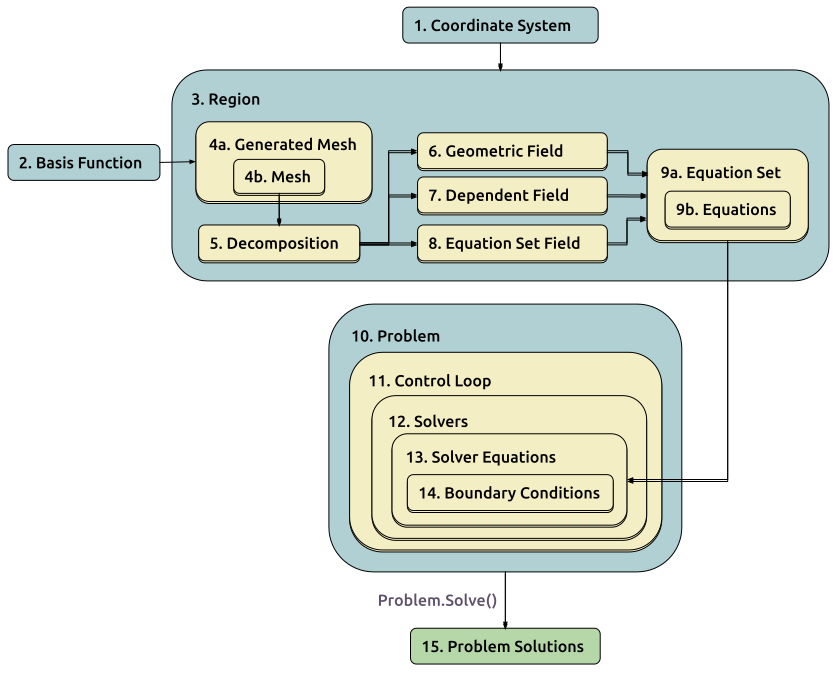
The figure below is a conceptual visualisation of the problem set up that this tutorial will walk you through. Here are key points that will help you interpret the diagram and appreciate the steps involved in creating a problem:
- The numbering in the figure corresponds to the steps that we will take to set up the problem.
- Each box represents a type of object that will be created for the problem.
- A box within a box represents an object that is a component of the parent object. For example, the Generated Mesh object falls within the Region object because a Generated Mesh object must be contained within a Region object.
- The arrows show the inter-object relationships. For example, a Generated Mesh object is associated with a Region object but it also needs a Basis Function object. The Decomposition object can only be created if there is a Mesh object associated with it.
- Lets define a few objects that are shown in the figure. More details about each of the objects are given as the tutorial progresses. \(f\) in the laplace equation above is the Dependent Field that we want to solve for over the Geometric Field defined by \(x\), \(y\), and \(z\) coordinates. To solve for \(f\) we need to define the Coordinate System, and the Basis Functions we want to use as the interpolation scheme. The Region object is a parent environment object in which the fields, geometry of the domain and equations are defined. We need to define the mesh that describes the geometry that we need to solve the equations over. Equation set and Equations objects that represent the discretised form, matrix form of the finite element implementation of the laplace problem are then set up using the different fields, mesh and basis functions we have defined. The Problem object contains information about the solution process used to solve the equations defined in the region. Boundary Conditions objects contain the boundary conditions that are defined for a particular simulation.
Loading the OpenCMISS-Iron library
In order to use OpenCMISS we have to first import the opencmiss.iron module from the opencmiss package.
[1]:
# Intialise OpenCMISS-Iron.
from opencmiss.iron import iron
Assuming OpenCMISS has been correctly built with the Python bindings by following the instructions in the installation instructions, we can now access all the OpenCMISS functions, classes and constants under the iron namespace. The next section describes how we can interact with the OpenCMISS-Iron library through an object-oriented API.
Step by step guide
1. Creating a coordinate system
First we construct a coordinate system that will be used to describe the geometry in our problem. The 3D geometry will exist in a 3D space, so we need a 3D coordinate system.
[2]:
# Create coordinate system object.
coordinate_system_user_number = 1
number_of_dimensions = 3

coordinate_system = iron.CoordinateSystem()
coordinate_system.CreateStart(coordinate_system_user_number)
coordinate_system.DimensionSet(number_of_dimensions)
coordinate_system.CreateFinish()
Note that once an OpenCMISS-Iron object has been created with a specific user number, you will need to destroy it (i.e. coordinate_system.Destroy) before you can recreate it again with the same user number. This means that if you are running this tutorial as a Jupyter notebook, then trying to re-run cells will result in an error saying that an ‘OpenCMISS-Iron object with that username has already been created’. Simply restart the Jupyter notebook kernel (resets the python interpreter), and
use the Jupyter notebook shortcut to rerun all the cells above the current point to continue with where you left off. Note that restarting the Kernel will remove all variables that you have previously created from memory).
2. Creating basis functions
The finite element description of our fields requires a basis function to interpolate field values over elements, so we create a 3D basis with linear Lagrange interpolation in both \(\xi\) directions. Note that in coding practice, the greek symbol \(\xi\) is represented as “Xi” (“Xi” is not read as “X sub i”).
- The
xi_interpolationvariable defines the basis interpolation scheme to use along each spatial direction. - The
number_of_guass_xivariable defines the number of Gauss points in each finite element coordinate direction (xi) for numerical integration operations.
[3]:
# Define basis parameters.
if number_of_dimensions == 1:
    xi_interpolation = [iron.BasisInterpolationSpecifications.LINEAR_LAGRANGE]
    number_of_guass_xi = [3]
elif number_of_dimensions == 2:
    xi_interpolation = [
        iron.BasisInterpolationSpecifications.LINEAR_LAGRANGE,
        iron.BasisInterpolationSpecifications.LINEAR_LAGRANGE]
    number_of_guass_xi = [3, 3]
elif number_of_dimensions == 3:
    xi_interpolation = [
        iron.BasisInterpolationSpecifications.LINEAR_LAGRANGE,
        iron.BasisInterpolationSpecifications.LINEAR_LAGRANGE,
        iron.BasisInterpolationSpecifications.LINEAR_LAGRANGE]
    number_of_guass_xi = [3, 3, 3]

# Create basis object.
basis_user_number = 1

basis = iron.Basis()
basis.CreateStart(basis_user_number)
basis.TypeSet(iron.BasisTypes.LAGRANGE_HERMITE_TP)
basis.NumberOfXiSet(number_of_dimensions)
basis.InterpolationXiSet(xi_interpolation)
basis.QuadratureNumberOfGaussXiSet(number_of_guass_xi)
basis.CreateFinish()
3. Creating a region
Next we create a region that our fields will be defined on and tell it to use the 2D coordinate system we created previously. The CreateStart method for a region requires another region as a parameter. We use the world region that is created by default so that our region is a subregion of the world region.
[4]:
# Create region object.
region_user_number = 1

region = iron.Region()
region.CreateStart(region_user_number, iron.WorldRegion)
region.CoordinateSystemSet(coordinate_system)
region.LabelSet("Region")
region.CreateFinish()
4. Setting up a simple cuboid mesh
In this example we will use the GeneratedMesh class capabilities of OpenCMISS to create a 3D geometric mesh on which to solve the Laplace problem. We will create a regular mesh of size width x height x length and divide the mesh into a number of elements in the X, Y, and Z directions (specified in a number_of_elements variable). We will then tell it to use the basis we created previously:
[5]:
#  Define mesh parameters.
if number_of_dimensions == 1:
    number_of_elements = [2]
    extent = [1.0] # Along X.
if number_of_dimensions == 2:
    number_of_elements = [2, 2]
    extent = [1.0, 1.0] # Along X and Y.
elif number_of_dimensions == 3:
    number_of_elements = [2, 2, 2]
    extent = [1.0, 1.0, 1.0]  # Along X, Y, Z.

# Create iron.GeneratedMesh object.
generated_mesh_user_number = 1
generated_mesh = iron.GeneratedMesh()
generated_mesh.CreateStart(generated_mesh_user_number, region) # Notice how the mesh initialisation is associated with region.
generated_mesh.TypeSet(iron.GeneratedMeshTypes.REGULAR)
generated_mesh.BasisSet([basis])
generated_mesh.ExtentSet(extent)
generated_mesh.NumberOfElementsSet(number_of_elements)
Note the use of a list type to pass in the basis as an argument in the BasisSet method. We will see the power of this in the finite elasticity tutorial, where meshes with multiple bases will be simultaneously generated.
The generated mesh is not itself a mesh, but is used to create a mesh. We construct the mesh object when we call the CreateFinish method of the generated mesh and pass in the mesh. This mesh object is just the same as if we had manually created the regular mesh.
Here we have initialised a mesh but not called CreateStart or CreateFinish, instead the mesh creation is done when finishing the creation of the generated mesh.
[6]:
# Create mesh object from generated_mesh object.
mesh_user_number = 1

mesh = iron.Mesh()
generated_mesh.CreateFinish(mesh_user_number,mesh) #the GeneratedMesh object contains attributes that are then used to define the mesh object attributes at this line.
5. Decomposing the mesh
Once the mesh has been created we can decompose it into a number of domains in order to allow for parallelism. We choose the options to let OpenCMISS calculate the best way to break up the mesh. We also set the number of domains to be equal to the number of computational nodes this example is running on. Note that if MPI infrastructure is not used, only single domain will be created. Look for our parallelisation example for an illustration of how to execute simulations using parallel processing techniques.
[7]:
# Perform mesh decomposition.
decomposition_user_number = 1

decomposition = iron.Decomposition()
decomposition.CreateStart(decomposition_user_number, mesh)
decomposition.CreateFinish()
6. Creating a geometric field
Now that the mesh has been decomposed we are in a position to create fields. The first field we need to create is the geometric field. Here we create a field and partition the field to different computational nodes using the mesh decomposition that we have just created. Once we have finished creating the field we can change the field DOFs to give us our geometry. Since the mesh has been generated we can use the generated mesh object to calculate the geometric parameters of the regular mesh.
[8]:
# Create a field for the geometry.
geometric_field_user_number = 1

geometric_field = iron.Field()
geometric_field.CreateStart(geometric_field_user_number, region) #notice that the geometric field is associated with region in this function call.
geometric_field.LabelSet('Geometry')
geometric_field.MeshDecompositionSet(decomposition)
geometric_field.CreateFinish()
We have created a geometric field but all the field component values are currently set to zero by default. We can define the geometry using the generated mesh we created earlier:
[9]:
# Set geometric field values from the generated mesh.
generated_mesh.GeometricParametersCalculate(geometric_field)
Visualising the geometry
We now visualise the geometry using pythreejs.
[10]:
import sys
sys.path.insert(1, '../../tools/')
import threejs_visualiser
renderer = threejs_visualiser.visualise(
    mesh, geometric_field, number_of_dimensions, xi_interpolation,
    variable=iron.FieldVariableTypes.U, node_labels=True)
7. Creating the dependent field
For the Laplace equation we need a dependent field (our solution) to describe our dependent variable \(f(x,y)\). Here haven’t used the Field.CreateStart method to construct the dependent field because we let OpenCMISS create an appropriate dependent field for the Laplace equations being described.
it is automatically constructed by the equations set.
Here we do not define a field before the CreateStart and so we let OpenCMISS create an appropriate dependent field for the Laplace equations being described. Once the fields have been created we can set the field DOF values.
[11]:
# Create dependent field.
dependent_field_user_number = 2

dependent_field = iron.Field()
8. Defining an equation set field
We also need to create a new field called the equation set field, whose purpose is defined in the next section.
[12]:
# Initialise equation set field object.
equations_set_field_user_number = 3

equations_set_field = iron.Field()
9. Defining the Laplace equation set
We are now in a position to define the type of physics that we wish to solve. This is done by creating an equations set which is a container object for all the parameters we need to describe the physics. The specific equation set we are solving is defined by a list in the fourth argument to the CreateStart method. This list needs to contain the equations set class, type and subtype.
The equation set field that we defined in the previous section is used by the OpenCMISS-Iron library to identify multiple equations sets of the same type on a region. As we only have one equation set in this example, we do not have to populate this field. All we need to do is pass the equation set field user number and the equation set field object when creating the equation set. Its field values will be automatically defined once the equation set is finalised.
[13]:
equations_set_user_number = 1

# Define Laplace equation specification.
equations_set_specification = [
    iron.EquationsSetClasses.CLASSICAL_FIELD,
    iron.EquationsSetTypes.LAPLACE_EQUATION,
    iron.EquationsSetSubtypes.STANDARD_LAPLACE]

# Create equation set object.
equations_set = iron.EquationsSet()
equations_set.CreateStart(
    equations_set_user_number, region, geometric_field,
    equations_set_specification, equations_set_field_user_number,
    equations_set_field)
equations_set.DependentCreateStart(
    dependent_field_user_number, dependent_field)
equations_set.DependentCreateFinish()
equations_set.CreateFinish()
Once the equations set is defined, we create the equations that use our fields to construct equations matrices and vectors.
[14]:
# Create equations object.
equations = iron.Equations()
equations_set.EquationsCreateStart(equations)
equations_set.EquationsCreateFinish()
We can initialise our solution with a value we think will be close to the final solution. A field in OpenCMISS can contain multiple field variables, and each field variable can have multiple components. For the standard Laplace equation, the dependent field only has a U variable which has one component. Field variables can also have different field parameter sets, for example we can store values at a previous time step in dynamic problems. In this example we are only interested in the VALUES parameter set:
[15]:
# Initialise dependent field.
dependent_field.ComponentValuesInitialiseDP(
    iron.FieldVariableTypes.U, iron.FieldParameterSetTypes.VALUES, 1, 0.5)
10. Defining the problem
Now that we have defined all the equations we will need we can create our problem to be solved by OpenCMISS. We create a standard Laplace problem, which is a member of the classical field problem class and Laplace equation problem type:
[16]:
# Create problem object.
problem_user_number = 1

problem = iron.Problem()
problem_specification = [
    iron.ProblemClasses.CLASSICAL_FIELD,
    iron.ProblemTypes.LAPLACE_EQUATION,
    iron.ProblemSubtypes.STANDARD_LAPLACE]
problem.CreateStart(problem_user_number, problem_specification)
problem.CreateFinish()
11. Defining control loops
The problem type defines a control loop structure that is used when solving the problem. The OpenCMISS control loop is a “supervisor” for the computational process. We may have multiple control loops with nested sub loops, and control loops can have different types, for example load incremented loops or time loops for dynamic problems. In this example a simple, single iteration loop is created without any sub loops. If we wanted to access the control loop and modify it we would use the problem.ControlLoopGet method before finishing the creation of the control loops, but we will just leave it with the default configuration:
[17]:
# Create control loops.
problem.ControlLoopCreateStart()
problem.ControlLoopCreateFinish()
12. Defining solvers
After defining the problem structure we can create the solvers that will be run to actually solve our problem. The problem type defines the solvers to be set up so we call problem.SolversCreateStart() to create the solvers and then we can access the solvers to modify their properties. An iterative solver is used by default.
[18]:
# Create problem solvers.
solver = iron.Solver()
problem.SolversCreateStart()
problem.SolverGet([iron.ControlLoopIdentifiers.NODE], 1, solver)
solver.OutputTypeSet(iron.SolverOutputTypes.SOLVER)
problem.SolversCreateFinish()
Note that we initialised a solver but didn’t create it directly by calling its CreateStart() method, it was created with the call to SolversCreateStart() and then we obtain it with the call to SolverGet(). If we look at the help for the SolverGet method we see it takes three parameters:
controlLoopIdentifiers: A list of integers used to identify the control loop to get a solver for. This always starts with the root control loop, given by CMISS.ControlLoopIdentifiers.NODE. In this example we only have the one control loop and no sub loops.
solverIndex: The index of the solver to get, as a control loop may have multiple solvers. In this case there is only one solver in our root control loop.
solver: An initialised solver object that hasn’t been created yet, and on return it will be the solver that we asked for.
Once we’ve obtained the solver we then set various properties before finishing the creation of all the problem solvers. A list of solver methods to configure the solver can be found here
13. Defining solver equations
After defining our solver we can create the equations for the solver to solve by adding our equations sets to the solver equations. In this example we have just one equations set to add but for coupled problems we may have multiple equations sets in the solver equations.
[19]:
# Create solver equations object and add equations set object to it.
solver = iron.Solver()
solver_equations = iron.SolverEquations()
problem.SolverEquationsCreateStart()
problem.SolverGet([iron.ControlLoopIdentifiers.NODE], 1, solver)
solver.SolverEquationsGet(solver_equations)
solver_equations.EquationsSetAdd(equations_set)
problem.SolverEquationsCreateFinish()
14. Defining the boundary conditions
The final step in configuring the problem is to define the boundary conditions to be satisfied. The Dirichlet problem for Laplace’s equation consists of finding a solution φ on some domain D such that φ on the boundary of D is equal to some given function. Since the Laplace operator appears in the heat equation, one physical interpretation of this problem is as follows: fix the temperature on the boundary of the domain according to the given specification of the boundary condition. Allow heat to flow until a stationary state is reached in which the temperature at each point on the domain doesn’t change anymore. The temperature distribution in the interior will then be given by the solution to the corresponding Dirichlet problem.
We will set the dependent field value at the first node to be 0, and at the last node to be 1.0. These nodes will correspond to opposite corners in our geometry.
These values are set using the SetNode() method. The arguments to the SetNode() method are the field, field variable type, node version number, node user number, node derivative number, field component number, boundary condition type and boundary condition value. The version and derivative numbers are one as we aren’t using versions and we are setting field values rather than derivative values. We can also only set derivative boundary conditions when using a Hermite basis type. There are a wide number of boundary condition types that can be set but many are only available for certain equation set types and in this example we simply want to fix the field value.
When solverEquations.BoundaryConditionsCreateFinish() is called OpenCMISS will construct the solver matrices and vectors.
[20]:
# Identify first and last node number.
first_node_number = 1
nodes = iron.Nodes()
region.NodesGet(nodes)
last_node_number = nodes.NumberOfNodesGet()

# Create boundary conditions object and set first and last nodes to 0.0 and 1.0
boundary_conditions = iron.BoundaryConditions()
solver_equations.BoundaryConditionsCreateStart(boundary_conditions)
boundary_conditions.SetNode(
    dependent_field, iron.FieldVariableTypes.U, 1, 1, first_node_number,
    1, iron.BoundaryConditionsTypes.FIXED, 0.0)
boundary_conditions.SetNode(
    dependent_field, iron.FieldVariableTypes.U, 1, 1, last_node_number,
    1, iron.BoundaryConditionsTypes.FIXED, 1.0)
solver_equations.BoundaryConditionsCreateFinish()
15. Solving the problem
After our problem solver equations have been fully defined we are now ready to solve our problem. When we call the Solve method of the problem it will loop over the control loops and control loop solvers to solve our problem:
[21]:
# Solve the problem.
problem.Solve()
Visualising results
We can now visualise the resulting solution using pythreejs.
[22]:
renderer = threejs_visualiser.visualise(
    mesh, geometric_field, number_of_dimensions, xi_interpolation,
    dependent_field=dependent_field,
    variable=iron.FieldVariableTypes.U,
    colour_map_dependent_component_number=1, resolution=8)
Exporting solutions
Now we want to have the results of the run be stored for visualisation in Cmgui.
[23]:
# Export results in Exfile format.
fields = iron.Fields()
fields.CreateRegion(region)
fields.NodesExport("laplace_equation", "FORTRAN")
fields.ElementsExport("laplace_equation", "FORTRAN")
fields.Finalise()
The simulation results should stored in the local directory as two files: laplace_equation.exnode and laplace_equation.exelem. The laplace_equation.exnode contains the data of the solution \(f(x,y)\) associated with each node. The laplace_equation.exelem file contains the topology of the mesh, and associates each element with its corresponding nodes.
Finalising session
Let the library know that you are done with computations and the resources allocated for the problem can now be released.
[24]:
problem.Destroy()
coordinate_system.Destroy()
region.Destroy()
basis.Destroy()

iron.Finalise()
Modifying the simulation from the 3D to 2D Laplace problem
To run a 1D or 2D Laplace problem using OpenCMISS-Iron, simple changes need to be made to above code in the iron.CoordinateSystem() class, the iron.Basis() class, and the iron.GeneratedMesh() class. However, for completeness, we summarise the code changes required to convert from a 3D Laplace problem to a 2D problem in the table below:
| 2D | 3D |
|---|---|
coordinate_system.DimensionSet(2) |
coordinate_system.DimensionSet(3) |
basis.NumberOfXiSet(2) |
basis.NumberOfXiSet(3) |
basis.InterpolationXiSet([iron.BasisInterpolationSpecifications.LINEAR_LAGRANGE]\*2) |
basis.InterpolationXiSet([iron.BasisInterpolationSpecifications.LINEAR_LAGRANGE]\*3) |
basis.quadratureNumberOfGaussXi([3,3]) |
basis.quadratureNumberOfGaussXi([3,3,3]) |
generated_mesh.ExtentSet([width, height]) |
generated_mesh.ExtentSet([width, height, length]) |
generated_mesh.NumberOfElementsSet([number_global_x_elements,number_global_y_elements]) |
generated_mesh.NumberOfElementsSet([number_global_x_elements,number_global_y_elements,number_global_z_elements]) |
The same Boundary Conditions can be defined in this example as it is based on the first and last node. However, in general, care must be taken in how the boundary conditions are defined for the users problem.
These changes have already been incorporated into this tutorial (you can see the required changes in the python if statements used in their corresponding sections of the code above). Simply change the number_of_dimensions variable defined when creating the OpenCMISS-Iron basis object to switch between 1D, 2D, or 3D Laplace problems. You can then restart the Jupyter notebook kernel and re-run the tutorial.
[ ]: